Features
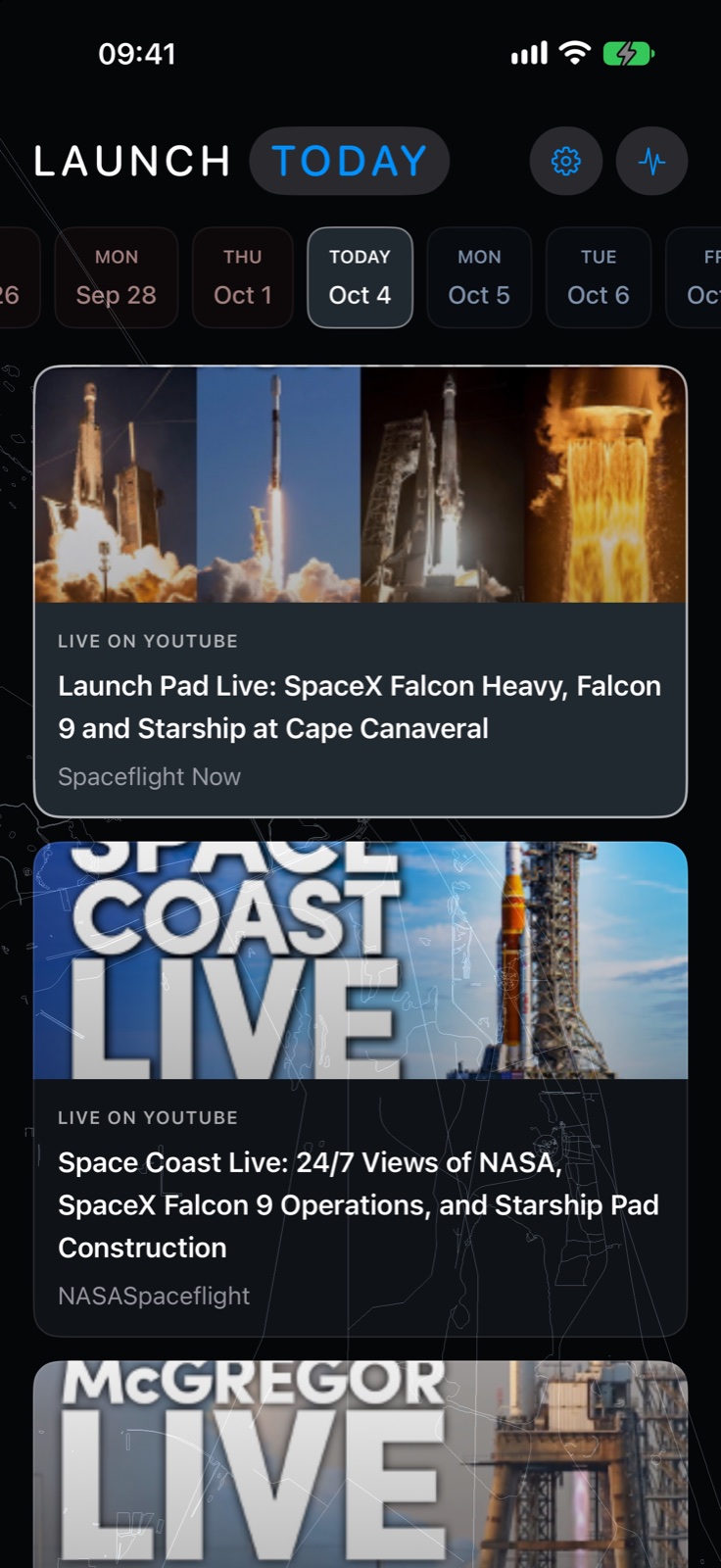
One timeline of days
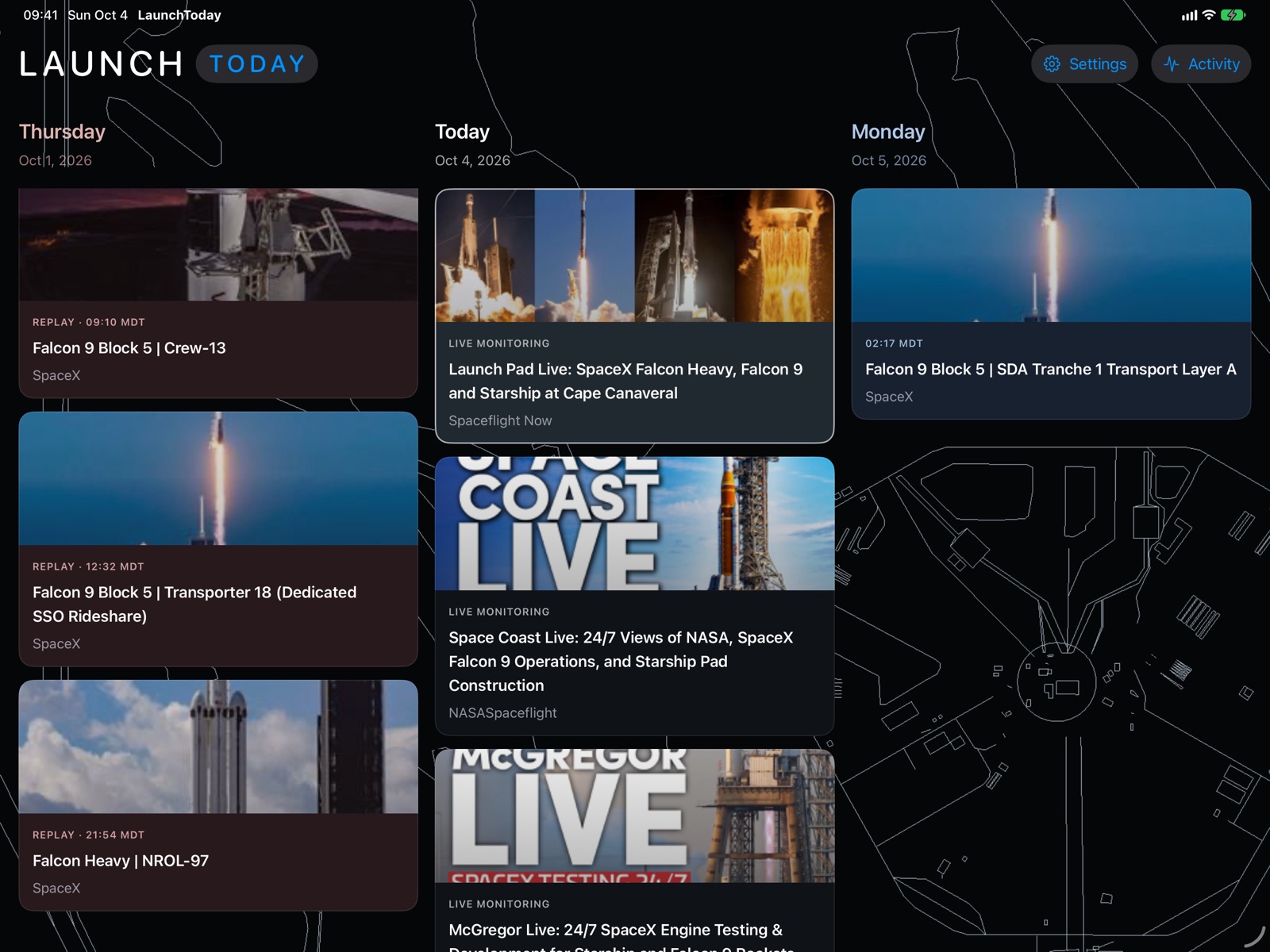
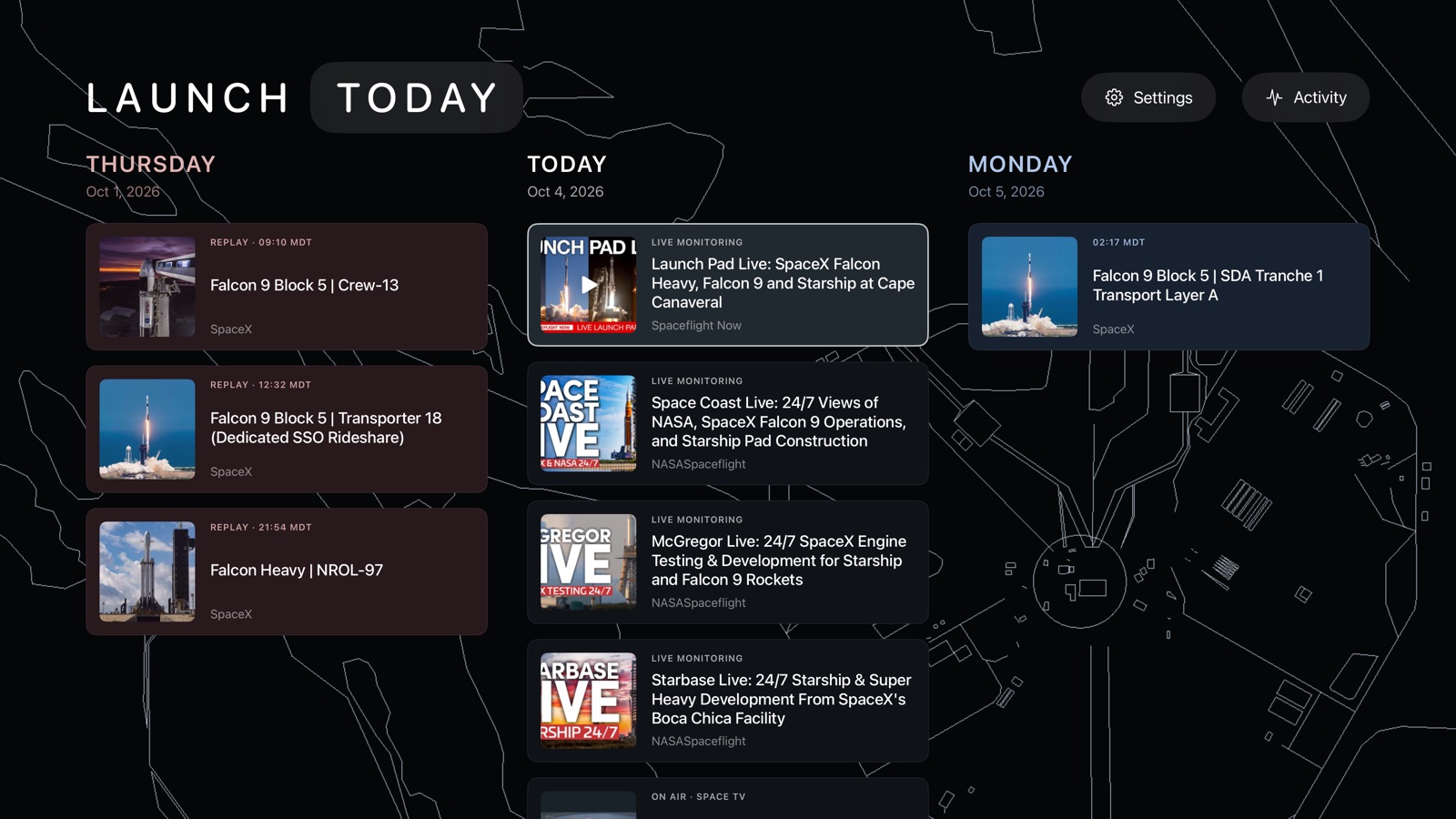
The past is to the left and the future to the right. Each day is a stack of videos and launches, and Launch Today opens on today, with a Today button to come back to it. Dates and times are in your device's time zone. A launch that only has a rough date so far, such as a week, a month or a quarter, waits in an Unconfirmed column at the end rather than being pinned to a made-up day.
Today's stack starts with replays of launches that have already flown (plus videos you've watched today), then anything live, then the round-the-clock launch-pad cameras and space TV, then launches still to come. Videos you watch show up on the day you watched them.
When you move to a day, Launch Today picks its headline launch for you: a launch that's live right now first; then, on today, an upcoming Starship, Blue Origin or SLS/Artemis launch, even before its broadcast starts; then the day's headline rocket (Starship, Blue Origin, SLS/Artemis, then heavy-lifters such as Falcon Heavy, Vulcan, Ariane 6 or Long March 5). Otherwise it picks the first one in the stack.
Where the video comes from
Launch times, providers, pads and mission descriptions come from The Space Devs' worldwide Launch Library, together with SpaceX's own mission list.
- SpaceX launches play as SpaceX's broadcasts on X. X broadcasts for other launch companies come from the Launch Library's webcast links and, after a launch, from the company's own mission page.
- Live coverage on YouTube: besides the webcasts the Launch Library lists, Launch Today checks these channels for live coverage: NASA, Blue Origin, JAXA, ISRO and Roscosmos, plus Spaceflight Now, NASASpaceflight, Everyday Astronaut and CGTN.
- Always on: Spaceflight Now's live feed (launch-pad views between webcasts) and ESA Web TV sit on today's stack.
- Replays: when you open a finished launch that has no video yet, Launch Today searches trusted channels' archives for a recording of that exact mission. Launches from Russia, Japan, India and China look first to Roscosmos, JAXA, ISRO and CGTN. For Chinese launches it can also use launch footage from The Paper or Weibo.
- Other languages: Russian and Chinese rocket and mission names are translated on your device to match the English launch record. Japanese and Hindi titles are recognised as launch coverage and matched using their English mission details.
A schedule alone never makes anything “live”. A video is labelled live only when its publisher marks it live, and Launch Today also checks that the stream is actually advancing. When it can't check (some YouTube streams block this), the card says “Live on YouTube” instead. Launch Today checks more often as liftoff gets close.
Starting at liftoff
When Launch Today finds the moment of liftoff (T−0) in a recording, it remembers it. It then plays that replay from 15 seconds before liftoff, unless you've already started watching it.
To find T−0 it samples frames across a recording in the background and reads the on-screen countdown clock with Apple's text recognition, on your device. A liftoff time is only accepted when several clock readings before and after liftoff agree with each other and with the video's own timing, and the picture isn't a frozen still around liftoff. Liftoff times it finds are saved to your iCloud so your other devices can skip the search. Well-verified times are also shared (only the video and the timing), so other people's devices can check them instead of searching from scratch. See Privacy.
For a recording without a readable clock, Launch Today can look for the moment of ignition in the picture instead. Those start times are labelled Visual estimate.
This search runs only while you're browsing, never while a video plays. It works through today first, then earlier days, headline rockets first, back as far as you choose in Settings: one day, one week (the standard) or one month. A recording it hasn't analysed yet plays from the beginning, or from where you left off.
Play it your way
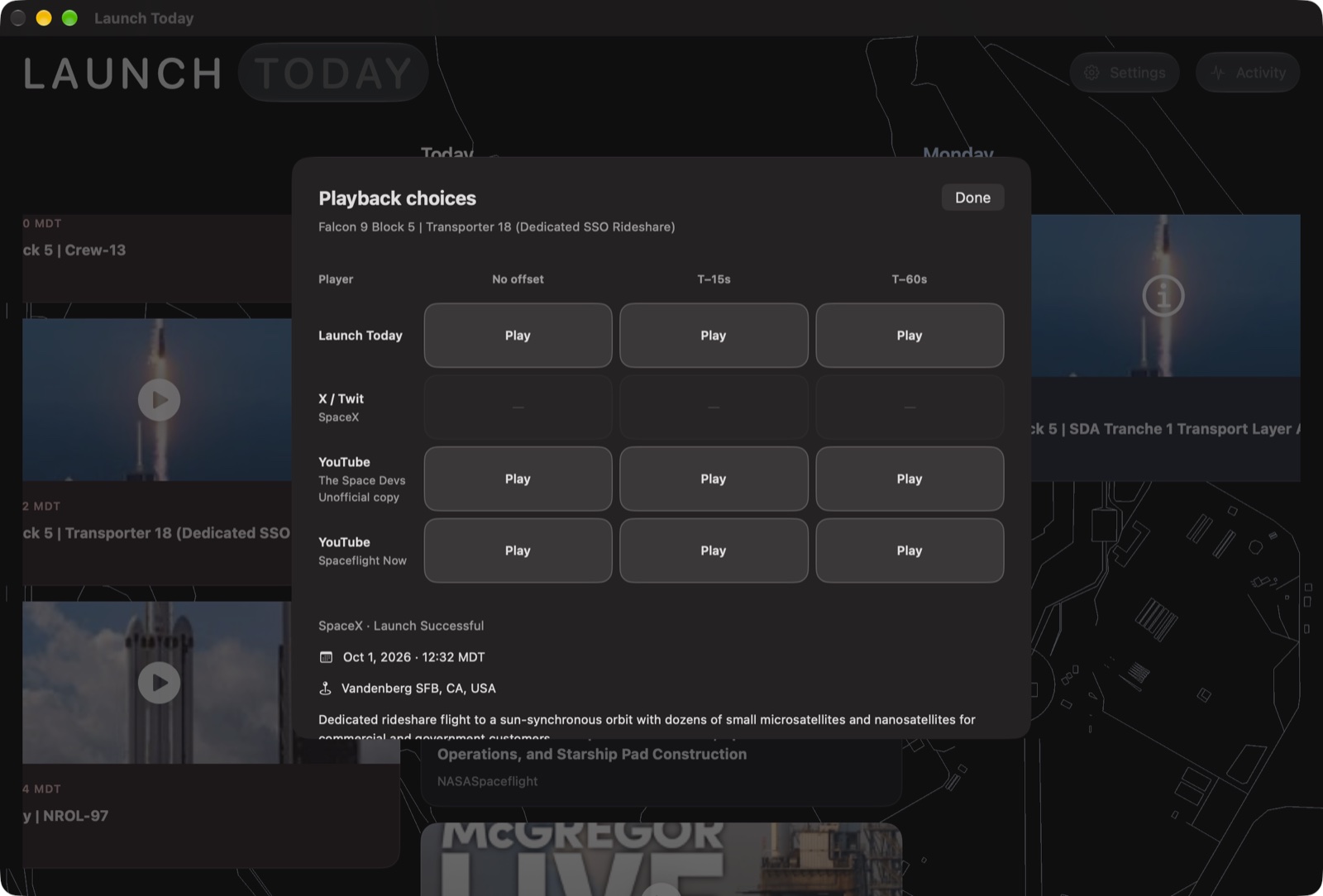
On Apple TV, Mac and Vision Pro, choose a video to play it. On iPhone and iPad, tapping a video opens its Playback choices. Anywhere, you can hold a video to see them (on Apple TV, hold the Select button; on a Mac you can also right-click and pick Playback choices…):
- No offset
- From the start, or from where you stopped watching. Live streams open at the live moment.
- T−15s
- 15 seconds before liftoff.
- T−60s
- A minute before liftoff.
T−15s and T−60s appear once Launch Today knows the recording's liftoff time.
Most videos can play either in Launch Today's own player (Apple's video player) or in the app they come from. With Use YouTube on, YouTube videos open in the YouTube app on Apple TV, iPhone, iPad and Vision Pro if it's installed (otherwise in Launch Today's player), and in your web browser on a Mac. On iPhone, iPad and Mac you can also open X broadcasts in the X app. When Launch Today knows the liftoff time of a YouTube video, it can ask YouTube to start 15 or 60 seconds before liftoff; the X app doesn't take a start time.
Bookmarks and channels
Bookmark a launch to keep it, with its videos, after it has dropped off the timeline. Whenever you have a bookmark, a bookmark button appears in the top bar after Settings and Activity. Bookmarks are kept on this device.
Hide channel hides a publisher's videos on every day (SpaceX's own coverage can't be hidden). Hidden channels are listed in Settings, where you can show them again.
See what it's doing
The Activity button opens a running log of what Launch Today is checking in the background: new launches, live streams, clock readings, liftoff times it has found, and what it rejected and why.
On each device
- Apple TV
- Left and right move between days, up and down through a day's videos. Up from the top reaches Today, Settings and Activity. Press Select to play, hold it for Playback choices, and press Back to leave a video.
- iPhone
- A strip of dates above one column of videos, in portrait or landscape. Tap a video to open its playback choices right under it; touch and hold to open the same choices in a separate sheet.
- iPad
- In a narrow window, the iPhone layout. Otherwise several whole days side by side, each under its own date.
- Mac
- Several days side by side. ← and → move between days, ↑ and ↓ through videos, Return plays and Escape leaves. View › Enter Full Screen for the big picture.
- Apple Vision Pro
- The timeline in a window you can place and resize.
Settings
- Use YouTube: open YouTube videos in the YouTube app (or your browser on a Mac). On by default.
- Use Twitter/X app (iPhone, iPad and Mac, when the X app is installed): open X broadcasts there. Off by default.
- Date format: the system's, or one of four styles such as “Full weekday / Dec 17, 2026” or “Mon / MM-DD”.
- Find launch start times while browsing, and how far back to look.
- Hidden channels, to show them again.
- Launch matching: Recheck saved footage, to try matching saved launch footage to its launch again.